Content Calendar in Excel: track campaign completion
Eight pieces planned, six ready and two awaiting review: that is a useful update if everyone knows what “ready” means. A content calendar in Excel can help you keep that campaign total visible and give the remaining work a clear next action.
This guide uses Content Calendar from template.fyi, an editable English-language workbook. The workshop example is fictional. Its completion percentage counts pieces; it does not publish content, measure reach or prove a sale.
1. Choose the right level of planning
The workbook has one sheet, called Template, and six columns: Campaign, Owner, Planned pieces, Completed pieces, Notes and Completion. Its XLSX format is an Excel workbook containing cells, formatting and formulas.
Use this structure for a campaign overview. There is no separate date, channel or publication-status column. Keep a separate schedule if each post needs its own publishing date. Make a working copy before replacing the supplied examples, and read the included guide and licence for your intended use.
2. Fill one campaign row
First agree on the definition of complete. For this example, a piece is complete when its content and image have passed review and it is ready for placement. That does not mean it has already been published.
In the first data row, row 5, enter a campaign name and the person or role responsible for updating it. Then fill these fields:
| Cell | Field | Fictional input |
|---|---|---|
| C5 | Planned pieces | 8 |
| D5 | Completed pieces | 6 |
| E5 | Notes | 2 awaiting review |
| F5 | Completion | Keep the existing formula |
Enter the counts as numbers, without adding “pieces” inside the cells. Replace the other supplied example rows before using the overview for real work.
3. Understand 75% and the rounded 88%
With six completed pieces out of eight planned, F5 shows 75%. When one more piece passes review, change D5 to 7 and update the note to 1 awaiting review.
Seven divided by eight is 0.875, or 87.5%. The existing percentage format shows no decimal places, so the visible cell rounds to 88%. The underlying result is still 0.875.
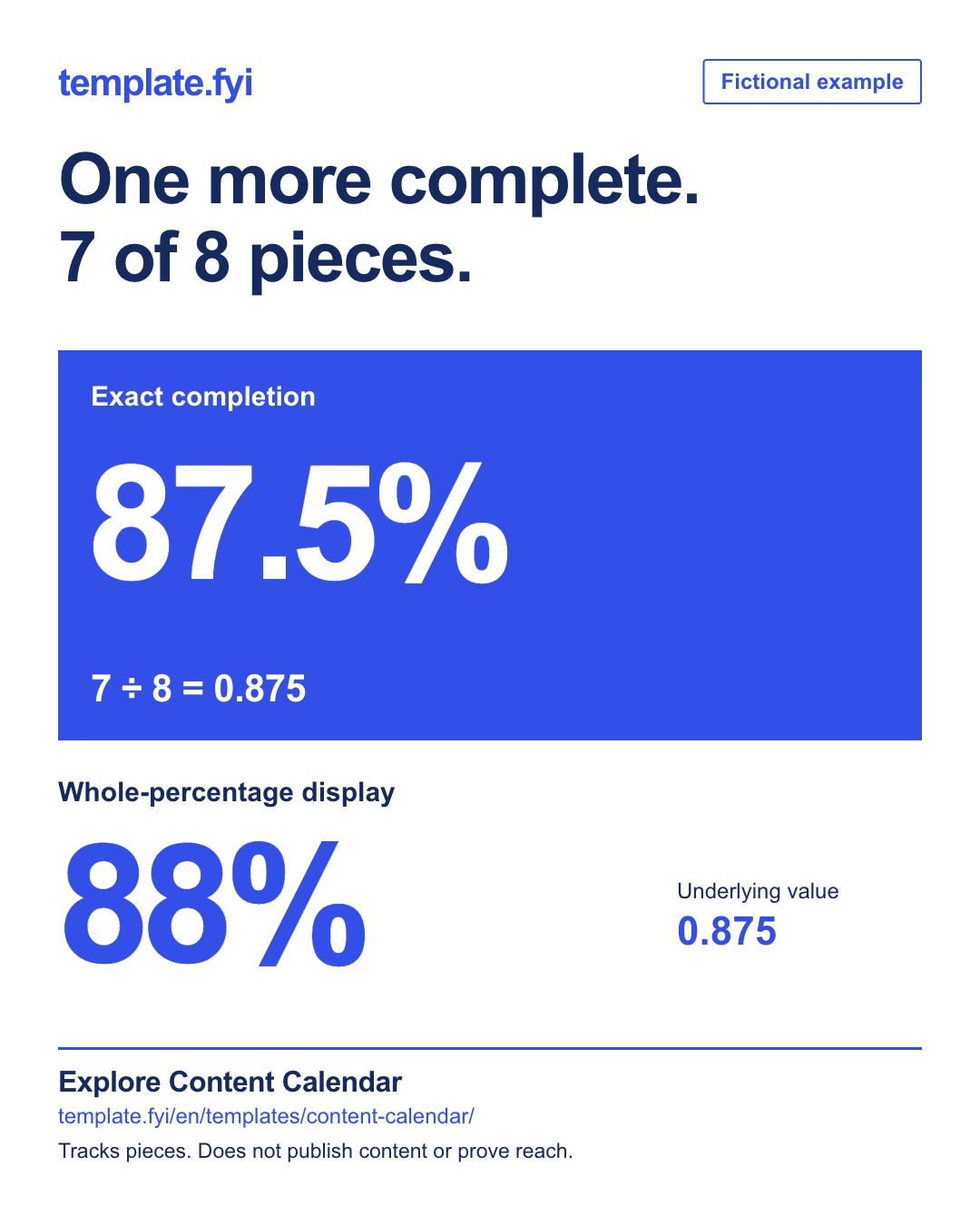
Illustrative card with fictional numbers. Not a screenshot of the workbook or a customer result.
The formula in F5 is:
=IF(C5=0,0,D5/C5)
Read it as: if the planned count is zero, return zero; otherwise divide completed pieces by planned pieces. Leave that formula in place. Your spreadsheet’s language settings may display the function name or separators differently.
4. Check what the percentage leaves out
With this formula, an empty plan and a plan of zero both show 0%. Use Notes to distinguish an undecided plan from an intentional zero.
Nine completed pieces against eight planned produce 112.5%. Check whether the plan changed, a piece was counted twice or an input is wrong. Record a deliberate plan change rather than silently adjusting the denominator.
Each piece counts equally. A short announcement and a long guide contribute the same amount to completion. For workload estimates, the separate guide on planning content capacity explains how to consider production and review time.
5. Turn the update into an action
At your next check-in, confirm the planned count, update what has passed review and assign the remaining task. In this example, “1 awaiting review” needs a reviewer and a clear next step.
Save a dated version and keep a backup outside your working copy. The workbook does not publish posts or fetch social statistics. To assess whether this compact overview fits your workflow, view Content Calendar and its current contents, then check one campaign’s first calculation.